Orange Dot on iPhone – Meaning, Causes and Fixes
If you’ve noticed an orange dot appearing at the top of your iPhone screen and wondered what it means, you’re not alone. This privacy indicator, introduced by Apple as part of a broader effort to give users more visibility into their device’s activity, has become a standard feature across iPhones running iOS 14 and later. Understanding what these indicators mean—and what to do when they appear unexpectedly—can help you maintain better control over your personal privacy.
The orange dot serves as an important safeguard against unauthorized access to your device’s microphone. While it may seem alarming at first, particularly if you believe you’re not using any app that requires audio input, the indicator is designed to inform rather than alarm. Most of the time, its appearance has a straightforward explanation rooted in normal app behavior.
This guide breaks down everything you need to know about the orange dot indicator, from what triggers it to how you can manage app permissions effectively. Whether you’re troubleshooting an unexpected appearance or simply want to understand your iPhone’s privacy features better, the following sections provide clear, actionable information.
What Does the Orange Dot on iPhone Mean?
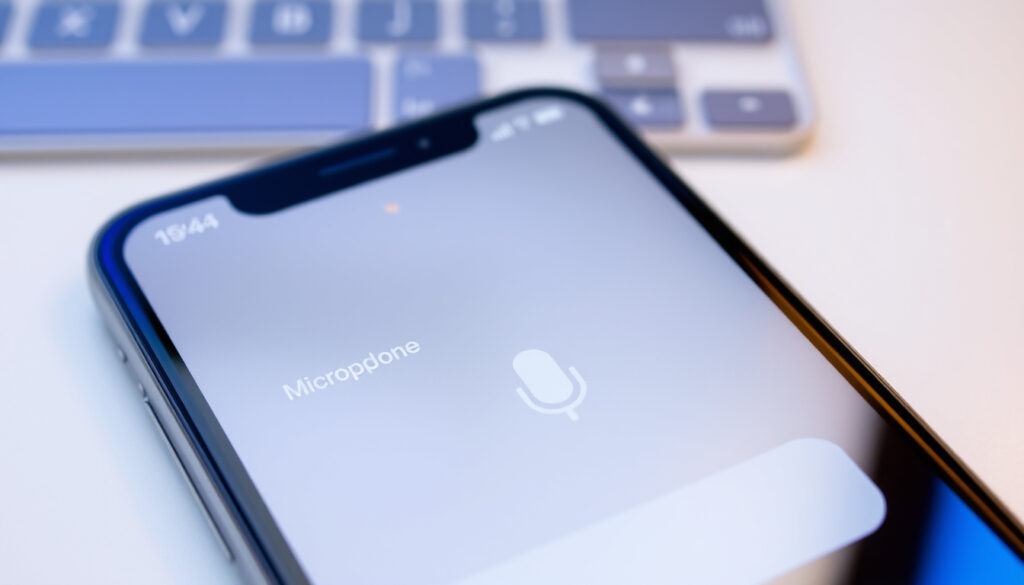
The orange dot on your iPhone indicates that an app or website is currently accessing your device’s microphone. This visual cue appears in the status bar near the notch or Dynamic Island, making it easy to spot whether you’re using your phone or simply holding it. According to Apple documentation and support resources, this indicator was introduced specifically to enhance user awareness of hardware access and help prevent unauthorized surveillance.
When the orange dot appears, it means audio input is active—nothing more, nothing less. Voice memos, phone calls, FaceTime conversations, and voice dictation all trigger this indicator under normal circumstances. The feature emerged as part of Apple’s response to growing privacy concerns, giving users real-time feedback about when their microphone might be picking up audio.
Microphone in active use
iOS 14 (September 2020)
Top right status bar
Green dot for camera access
Key insights about the orange dot indicator include:
- A privacy feature, not a software malfunction or bug
- Indicates microphone access by apps or websites
- Cannot be fully disabled without jailbreaking your device
- Check Control Center to identify which app is currently active
- Works alongside the green dot for comprehensive hardware monitoring
- Designed to be visible against dark backgrounds like Dynamic Island
- Represents Apple’s commitment to transparency in app behavior
| Indicator | Color | Meaning | When It Appears | Introduced |
|---|---|---|---|---|
| Microphone | Orange | Mic active | Voice memos, calls, dictation | iOS 14 |
| Camera | Green | Camera active | Photos, videos, FaceTime | iOS 14 |
| Camera + Mic | Green | Both active | Video recording with audio | iOS 14 |
| Alternative Shape | Orange Square | Mic active | If Differentiate Without Color is enabled | iOS 14 |
How Do I Remove or Disable the Orange Dot on iPhone?
The short answer is that you cannot remove or disable the orange dot indicator on your iPhone. Apple has intentionally designed this feature as a non-optional element of the privacy system. According to Apple Support documentation, the company prioritizes visibility over customization when it comes to these indicators, believing that users deserve to know whenever their microphone is being accessed.
Managing App Permissions Instead
While you cannot hide the indicator itself, you can control which apps have permission to access your microphone in the first place. Navigate to Settings > Privacy & Security > Microphone to review and manage these permissions. Toggle off access for any apps you don’t recognize or trust. This approach doesn’t eliminate the dot when microphone access genuinely occurs, but it reduces the likelihood of unexpected appearances from apps you don’t use.
Similarly, for camera access, visit Settings > Privacy & Security > Camera to review permissions. Keeping these lists minimal—allowing microphone and camera access only to apps that genuinely require it—represents best practice for maintaining your privacy.
Disabling microphone permissions for an app may affect its functionality. For example, a voice messaging app won’t work if you revoke its microphone access. Always consider whether you actually use the audio features of an app before disabling permissions.
Force Quitting Problematic Apps
If you see the orange dot appearing while using a specific app and want to stop it immediately, you can force quit that app. Swipe up from the bottom of the screen (or double-tap the Home button on older devices) to access the app switcher, then swipe up on the app card to close it. This terminates any background processes that might be accessing your microphone.
Green vs. Orange Dot: iPhone Privacy Indicators Explained
iOS 14 introduced two distinct privacy indicators to help users understand when their device hardware is in use. Each serves a specific purpose and appears under different circumstances. Understanding the difference between these indicators is fundamental to interpreting what your iPhone is communicating.
What the Green Dot Means
The green dot appears when an app accesses your camera. This includes any situation where the camera hardware is active, whether for photos, videos, or video calls. According to multiple sources including technical explainers and Apple documentation, the green dot also appears when both camera and microphone are accessed simultaneously. This dual-purpose nature means the green dot actually covers more ground than you might initially assume.
What the Orange Dot Means
The orange dot, by contrast, indicates microphone-only access. Activities like recording voice memos, making phone calls, using Siri, or dictating text all trigger this indicator. It’s important to note that if an accessibility setting is enabled—specifically Settings > Accessibility > Display & Text Size > Differentiate Without Color—the orange dot may appear as an orange square instead, ensuring users who have difficulty distinguishing colors can still identify the indicator.
Neither Indicates a Problem by Default
Both indicators are intentional features for transparency, not signs of malfunction or unauthorized access. As documented in Apple support resources, these visual cues are designed to inform users about legitimate app behavior. The appearance of either dot during normal app usage should not be interpreted as evidence of hacking, viruses, or surveillance by default.
Orange = Microphone only | Green = Camera (or camera + microphone). When in doubt, open Control Center by swiping down from the top-right corner to see which specific app or website is causing the indicator to appear.
Troubleshooting Persistent or Random Orange Dots on iPhone
Many users report seeing the orange dot appear unexpectedly, sometimes when they believe no apps are actively using the microphone. In most cases, this phenomenon has explainable causes rooted in standard app behavior rather than malicious activity. Understanding these causes can reduce unnecessary concern and guide effective troubleshooting.
Common Causes of Unexpected Orange Dots
Background app activity represents the most frequent explanation. Video calling apps, social media platforms, and communication tools often maintain microphone connections even when running in the background. Websites with microphone permissions granted through Safari can also continue accessing audio input after you’ve navigated away from them. This behavior, while sometimes unexpected, is generally benign and reflects how modern apps maintain connectivity.
Identifying the Source
To determine which app is responsible for an orange dot, open Control Center by swiping down from the top-right corner of your screen. The top section of Control Center displays an icon indicating the app or website currently using your microphone, complete with a recognizable icon for quick identification. This feature makes it straightforward to trace unexpected microphone activity back to its source.
Resolution Steps
If you identify an app causing unexpected microphone access, several steps can address the situation. First, check Settings > Privacy & Security > Microphone and revoke permissions for suspicious or unrecognized apps. Second, ensure your iOS software remains current by installing available updates, which often include security refinements. Third, review your installed apps periodically and disable permissions for any you no longer use actively.
If the Control Center reveals an app you don’t recognize or can’t identify, investigate further. While rare malware cases have been documented, most instances of unknown apps trace to misconfigured permissions or background processes rather than malicious software. Consider running a security scan using reputable tools if concerns persist.
About the “Virus” Question
Many users ask whether the orange dot indicates a virus or spyware. Current evidence from reputable sources and Apple Support indicates no confirmed widespread virus issues directly tied to these indicators alone. User reports consistently note that unexpected appearances stem from lingering permissions or known apps with background access, not from malware infections. However, if you genuinely suspect spyware, tools like Certo AntiSpy exist for iOS scanning, and enabling Lockdown Mode through Settings > Privacy & Security provides enhanced protection.
Evolution of iPhone Privacy Indicators
- September 2020: Apple releases iOS 14, introducing the orange and green dot indicators as part of a broader privacy feature set.
- 2021 onward: Indicators remain consistent through iOS 15, 16, 17, and subsequent updates, becoming a standard element of the iOS experience.
- Ongoing: Apple continues refining privacy features while maintaining these indicators as permanent, non-removable elements of the system.
- Present: User education remains active as new iPhone users encounter these indicators and seek to understand their meaning.
What We Know and What Remains Unclear
| Established Information | Information That Remains Less Certain |
|---|---|
| Official Apple privacy indicator for microphone use | Specific app-by-app behavior varies and isn’t publicly documented |
| Introduced with iOS 14 in 2020 | Full extent of background access policies per app developer |
| Cannot be disabled through standard settings | Whether future iOS versions will offer any customization |
| Control Center shows which app is active | Complete list of system services that trigger indicators |
| Alternative shape (square) available via accessibility settings | Frequency and causes of true false positives versus expected behavior |
Understanding iOS Privacy Evolution
The introduction of microphone and camera indicators reflects a broader shift in Apple’s approach to user privacy. Over the past several years, Apple has positioned itself as a defender of user data, implementing features like App Tracking Transparency, mail privacy protection, and comprehensive permission dashboards. The orange and green dots fit within this larger framework, providing transparency without requiring users to dig through settings or logs.
These indicators also respond to legitimate user concerns about so-called “ghost listening”—the fear that apps might activate microphones or cameras without obvious user action. By making these indicators visible and persistent, Apple reduces uncertainty and empowers users to notice patterns that might warrant investigation.
Best practices for iPhone privacy management include regularly reviewing app permissions, keeping iOS updated, and understanding that these indicators exist to protect rather than alarm. Apps with microphone or camera access should serve clear purposes in your daily usage, and any persistent unexpected activity deserves investigation.
What Apple Says About These Indicators
“An orange indicator means the microphone is being used by an app on your iPhone. This indicator appears as an orange square if you turn on Differentiate Without Color.”
— Apple Support Documentation
“A green indicator means either the camera or the camera and microphone are being used by an app on your iPhone.”
— iOS 14 Release Notes
Next Steps for iPhone Users
If you’ve been concerned about the orange dot appearing on your iPhone, taking proactive steps can bring peace of mind and enhance your overall device security. Start by reviewing which apps currently have microphone access through your device settings. Remove permissions from any apps that don’t need audio input to function properly. Force quit any apps you suspect of running background processes, and ensure your operating system remains current with the latest updates.
For those interested in related iPhone functionality and time-related features, understanding how your device tracks and displays information can be equally valuable. The Best Times to Post on TikTok guide explores how platform algorithms interact with user behavior timing, while the What Time Was It 7 Hours Ago resource addresses common time calculation questions iPhone users frequently encounter.
Frequently Asked Questions
What iOS version introduced the orange dot?
The orange dot indicator was introduced with iOS 14, which Apple released in September 2020. It has been a standard feature on all iPhones running iOS 14 and later versions.
Orange dot appears randomly on iPhone—what should I do?
Open Control Center to identify the app causing the activity. If it’s a legitimate app you trust, background processes may explain the appearance. If you don’t recognize the app, review and revoke its microphone permissions in Settings > Privacy & Security.
Is the orange dot on iPhone a sign of a virus?
No confirmed evidence links the orange dot indicator alone to viruses or malware. Unexpected appearances typically stem from background app activity or lingering permissions rather than malicious software.
Can someone spy on me through my iPhone microphone when the orange dot appears?
The orange dot indicates active microphone access, but this doesn’t automatically mean unauthorized surveillance. Legitimate apps with permissions can access your microphone, and the indicator exists precisely to inform you of this activity.
Why does the orange dot sometimes appear as a square?
When the accessibility setting “Differentiate Without Color” is enabled (Settings > Accessibility > Display & Text Size), the orange microphone indicator appears as an orange square instead of a dot to aid users who have difficulty distinguishing colors.
How can I tell exactly which app is using my microphone?
Swipe down from the top-right corner to open Control Center. The top section displays a microphone icon along with the icon of the specific app or website currently accessing your microphone.
Do both indicators appear together?
When both camera and microphone are active simultaneously, only the green dot appears. The orange dot shows exclusively for microphone-only access, while the green dot covers any camera usage, including situations where both hardware components are engaged.
More related posts
 She Gon Call Me Baby Boo: Meaning, Trend & Song Explained
 Saoirse-Monica Jackson: Dyslexia, Marriage, and New Series (2026)
 The Grinch 2000 Cast: Actors, Roles, and Where They Are Now
 How to Relieve Feeling of Something Stuck in Throat
 Now You See Me 3 Release Date: November 14, 2025 Confirmed
 Aquarium of the Pacific: Tickets, Hours, Map & Visit Guide
 Birds of a Feather: Meaning, TV Series, and Billie Eilish Song
 What Does Pookie Mean? Slang Meaning, Origins, and More