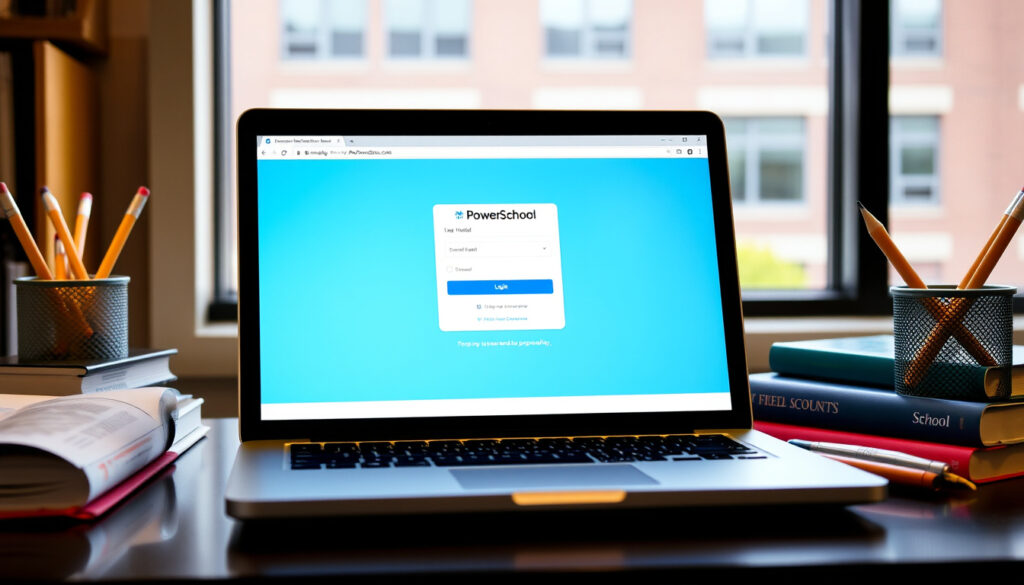
PowerSchool Student Sign In: How to Log In to Your Portal
If you’re a student or a parent trying to log in to PowerSchool for the first time, the process can feel surprisingly scattered. That’s because PowerSchool doesn’t hand out logins—each school district runs its own portal, with its own URL and credentials.
Logins issued by: School or district ·
Portal type: Student Information System (SIS) ·
Access methods: Web browser + mobile app ·
Student data covered: K-12 grades, attendance, assignments
Quick snapshot
- Credentials are issued by your school or district, not by PowerSchool (PowerSchool Sign-In page)
- Check your school website or ask the office for a login packet (PowerSchool Sign-In page)
- Each district has a unique PowerSchool URL (PowerSchool Parent & Student Resource Center)
- Example:
sis.yourdistrict.org/public/home.html(PowerSchool Parent & Student Resource Center)
- Download PowerSchool Mobile from Google Play or Apple App Store (PowerSchool Student and Parent Portal User Guide)
- Log in with the same district-specific credentials and district code (PowerSchool Student and Parent Portal User Guide)
- Contact your school for password resets and login issues (PowerSchool advises contacting your district)
- PowerSchool Support only helps district administrators (PowerSchool advises contacting your district)
The table below compiles the key platform facts every student and parent should know before attempting to log in.
| Attribute | Details |
|---|---|
| Platform Type | Student Information System (SIS) |
| Login Issued By | School or district, not PowerSchool corporate (PowerSchool Sign-In page) |
| Available Access Methods | Web browser (desktop/mobile) and mobile app |
| Data Tracked | K-12 grade records, attendance, assignments |
| District Code Location | Lower-left corner of portal menu bar after web sign-in (Orange County Schools support guide) |
| Parent Account Required | Separate from student account; uses Access ID and Access Password (PowerSchool Families Help) |
A student who tries to use a generic “PowerSchool” login will fail every time. The single most important step is knowing your district’s exact portal URL — and that’s something only your school can give you.
How do I sign in to PowerSchool as a student?
- Understand that your login is district-specific — credentials come from your school, not PowerSchool.
- Obtain the correct login URL from your school — check your school website or welcome packet.
- Enter your username and password provided by the school — use the exact case-sensitive credentials.
Understand that your login is district-specific
- PowerSchool does not issue universal login credentials. Each school or district manages its own portal and provides students with a unique URL, username, and password (PowerSchool Sign-In page).
- According to PowerSchool’s official support, “student and parent logins are granted by schools and districts” (PowerSchool Parent & Student Resource Center).
Obtain the correct login URL from your school
- Your school should give you a welcome letter or a handout with the portal address. If not, check the school’s website under a “Parents” or “Students” section (PowerSchool recommends checking your school website).
- Typical URL pattern:
https://sis.yourdistrictname.powerschool.com/public/home.html(PowerSchool Resource Center).
Enter your username and password provided by the school
- Use the exact credentials the school issued — they are case-sensitive. Once you enter them, click the Sign In button to reach your start page (PowerSchool Student and Parent Portal User Guide).
- If you are using the PowerSchool Mobile app, you will also need your district code. After signing in via the web portal, look in the lower-left corner of the menu bar for the four-digit code (Orange County Schools Digital Learning Support).
How do I find my school’s PowerSchool student portal?
Search for your district name and ‘PowerSchool login’
- A quick Google search using your district name plus “PowerSchool login” almost always returns the right portal as the first result (PowerSchool suggests this approach).
- For example: “Orange County Schools PowerSchool login” leads directly to the portal.
Check your school’s official website for a PowerSchool link
- Most school websites have a “Parents” or “Students” tab with a direct link. The South Orange & Maplewood School District, for instance, places PowerSchool under Quick Links → Students (SOMSD PowerSchool Student Portal Guide).
Contact your school’s front office or IT department
- If you can’t find the link, call the school. They can give you the exact URL and, if needed, issue new login credentials (PowerSchool advises contacting your school).
How do I log in to PowerSchool to check my grades?
Use PowerSchool Mobile app or web portal
- After signing in on the web, click “Grades and Attendance” from the navigation bar. The same sections are available on the mobile app (PowerSchool User Guide).
- Grade visibility depends on your district’s settings — some schools display real-time scores, others update on a schedule (PowerSchool Families Help explains parent view).
Navigate to the Grades or Attendance section
- Once on the start page, you’ll see dashboard widgets. Look for “Grade History” or “Assignment Scores.” Click any term to expand detailed marks.
- If you don’t see grades, your district may have restricted that view. Check with your school’s IT team.
Common troubleshooting for grade viewing issues
- Clear your browser cache or try a different browser. The PowerSchool portal works best with Chrome, Firefox, or Safari.
- Make sure you are using the student account, not a parent account — parent accounts sometimes have separate grade views.
If grades appear blank, your school may have disabled online grade display for certain terms. Don’t assume it’s a login error; ask your teacher or registrar first.
How can a parent sign in to the PowerSchool Parent Portal?
Create a parent account if you do not have one
- From your school’s portal URL, click “Create Account” on the sign-in page. You’ll need an Access ID and Access Password for each student — these are provided by the school (PowerSchool Families Help).
- After entering the Access ID and password, you will receive a verification email. Click the link to activate your account.
Link your parent account to each student
- One parent account can link multiple students. Simply repeat the process of entering each child’s Access ID and password during account setup.
- Parent accounts are separate from student accounts — a student login cannot access parent features like fee payment or emergency contact updates.
Use the same district portal URL as students
- Parents and students share the same portal URL. There is no separate “parent portal address.”
- If you ever forget your parent password, use the “Forgot Password” link on the same page (SOMSD guide mentions the Forgot link).
What should I do if I forgot my PowerSchool student password?
Use the ‘Forgot Password’ link on your district’s login page
- On your school’s PowerSchool sign-in page, click the “Forgot Username or Password” link. If your school has enabled self-service, you can reset your password by following the emailed instructions (SOMSD guide illustrates this feature).
Contact your school’s technology help desk
- If the self-service option is not available, reach out to your school’s technology help desk. They can reset your password or issue a new one (PowerSchool says districts handle all credential management).
Re-request credentials from the school office
- Some smaller schools prefer to hand out new logins in person. Visit the main office with your student ID.
- PowerSchool Support cannot help you — they only assist district administrators. Your school is your sole help line.
Confirmed facts vs. What’s unclear
Confirmed facts
- PowerSchool advises that each school or district manages its own sign-in process (PowerSchool Resource Center)
- Logins are granted by schools, not by PowerSchool (PowerSchool Sign-In page)
- A district code appears in the lower-left corner of the portal menu bar after login (Orange County Schools guide)
- Parent accounts require an Access ID and Access Password provided by the school (PowerSchool Families Help)
- PowerSchool Mobile uses the district code gathered from the web portal (PowerSchool User Guide)
What’s unclear
- The exact number of students using PowerSchool globally has not been publicly confirmed by PowerSchool
- Specific district URL formats can vary — some use different subdomains than the standard pattern
- Whether self-service password reset is enabled depends on each district’s configuration
“Student and parent logins are granted by schools and districts. PowerSchool does not have this information.”
PowerSchool official Support page
“Open a web browser to your school’s PowerSchool Student and Parent portal URL. Click Sign In to reach your start page.”
PowerSchool Student and Parent Portal User Guide (PDF)
For any student or parent managing school records across multiple children or districts, the choice is clear: track down your school’s exact portal URL and keep the district code handy. Without those two pieces, you’re locked out — so save them now.
youtube.com, help.powerschool.com, stonepark.edu.pe.ca, help.powerschool.com, csdnb.org, marion.k12.sc.us
Frequently asked questions
How do I create a new PowerSchool student account?
Students cannot create accounts themselves. The school or district creates the account and provides the login credentials. If you have not received them, contact your school office.
Can I use the same login for PowerSchool on my phone?
Yes, the same username and password work on both the web portal and the mobile app. You will also need the district code, which you can find by logging into the web portal once (Orange County Schools guide explains this).
Why can’t I see my grades after logging in?
Grade visibility depends on your district’s settings. Some schools hide grades until they are posted by teachers. Check with your school if grades are missing for more than a few days.
Is PowerSchool the same as the Parent Portal?
PowerSchool is the platform; the Parent Portal is the section parents use. Students log into the same system but see a different dashboard tailored to their role.
Do I need a separate login for each child in PowerSchool?
For parents: one account can link multiple children using separate Access IDs during setup. For students: each child has their own student account.
What is the difference between PowerSchool SIS and PowerSchool Learning?
PowerSchool SIS (Student Information System) manages grades, attendance, and demographics. PowerSchool Learning (formerly Haiku Learning) is a learning management system for classrooms. They are separate products but may be linked in some districts.
More related posts
 10 Year Treasury Yield Today: Rate, Impact & Forecast
 Do Eyelashes Grow Back – Timeline Factors And Tips
 What Time Is It in England? Current Local Time & DST
 Washing Machine Repair Near Me: Fix or Replace 2026
 Amendments to the Constitution: US & Irish Guide (27 vs 32)
 What Is Love Island On Tonight? Streaming Platforms Guide
 Anthony Mackie Movies & TV Shows: Complete Filmography
 Day Spa Near Me: Costs, Etiquette & Best Dublin Spas